On this page
Add candidates to campaign
There are two ways of inviting candidates to a campaign:
- Self Registration
- Add candidates manually to a campaign : individually or by bulk file upload.
Candidate self-registration
Candidates can be sent a self-registration URL (link) where they can self-register for the Campaign to complete the assessment.
This way eliminates the administration effort required to add candidates to a Campaign.
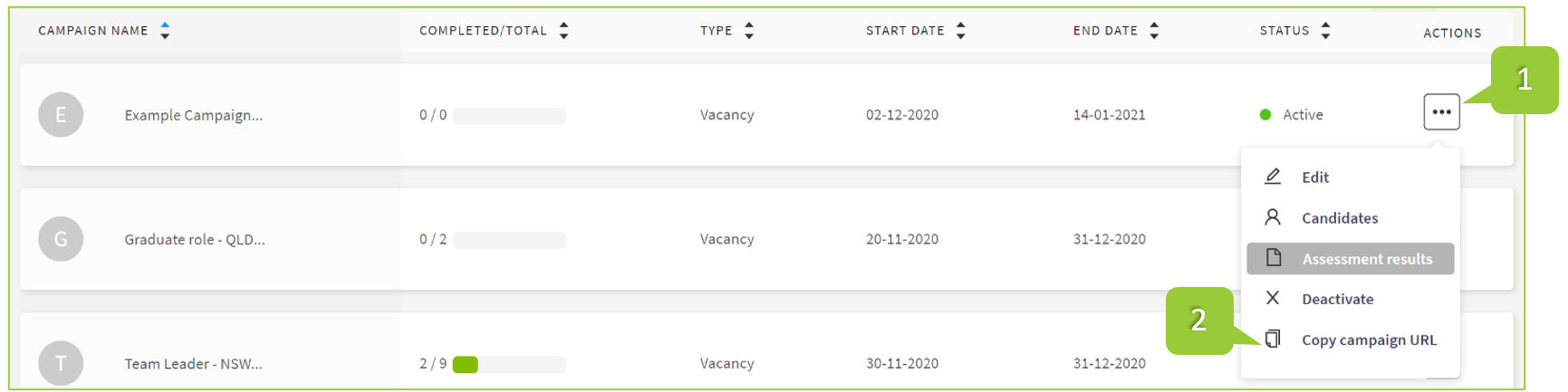
On the Campaigns page, click the icon under the Actions column of the required campaign
Click the Copy campaign URL
The self-registration link will be copied to the clipboard which can be pasted into an email or job postings as required.
Add candidates individually
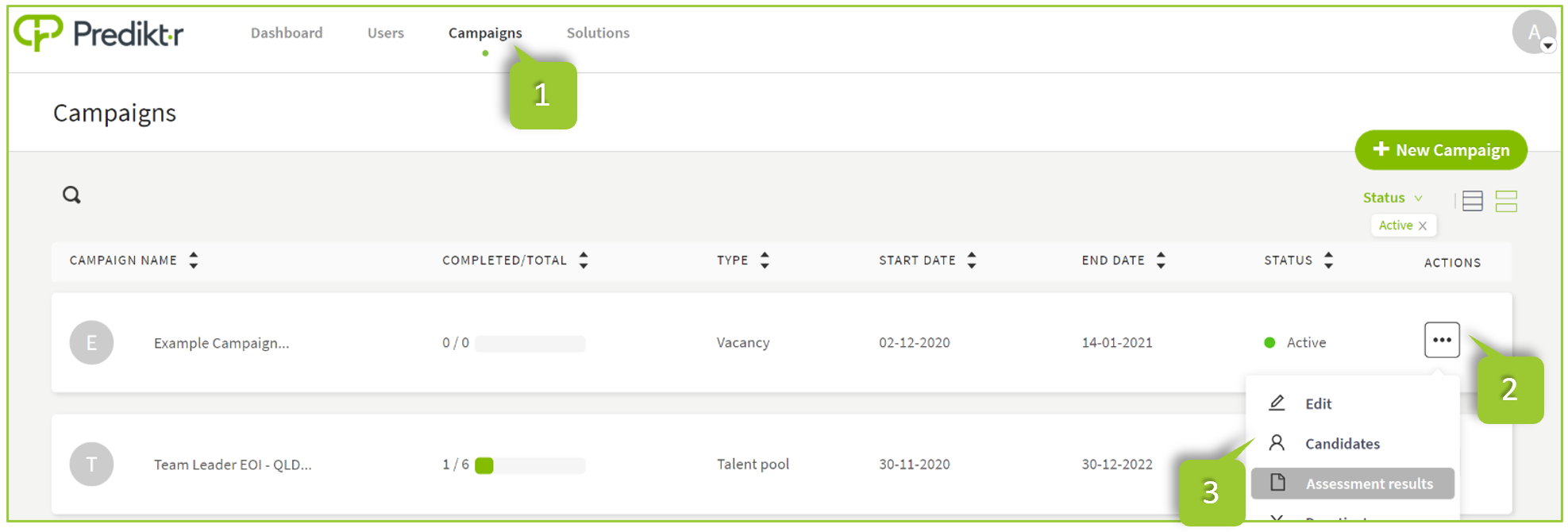
Click Campaigns on the main menu
Select the campaign to which new candidates are to be added. Click on menu icon under the Actions column
Click Candidates
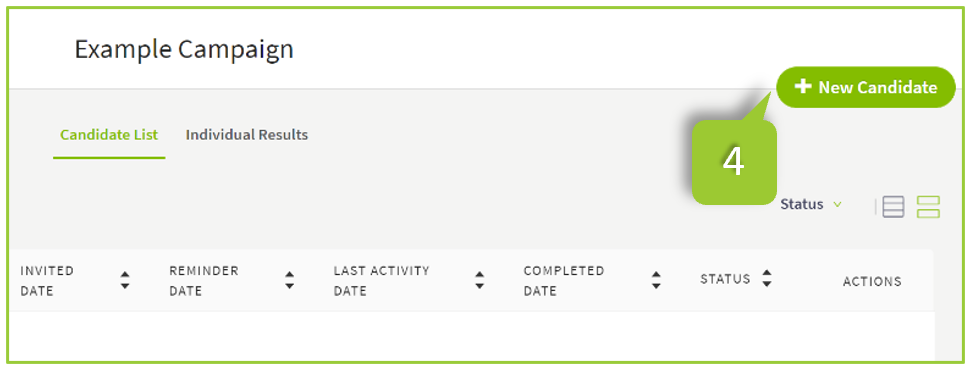
- Click + New Candidate (located in the top right corner of the Candidate List page)
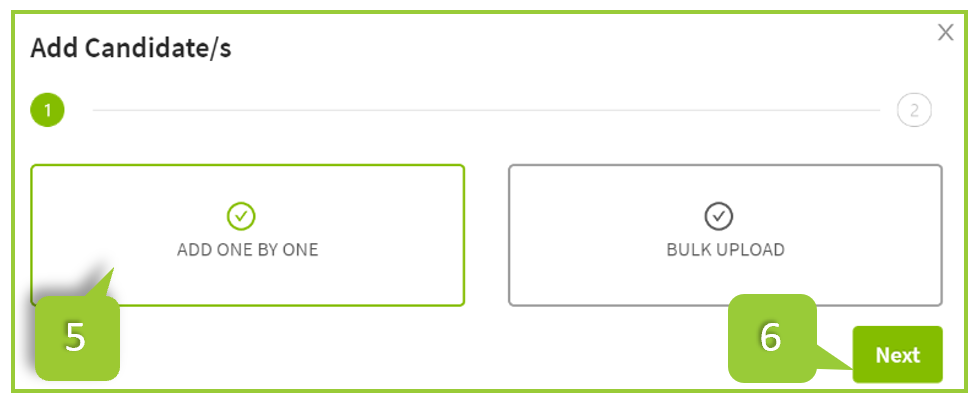
The Add Candidate/s page will appear. Select Add one by one
Click Next
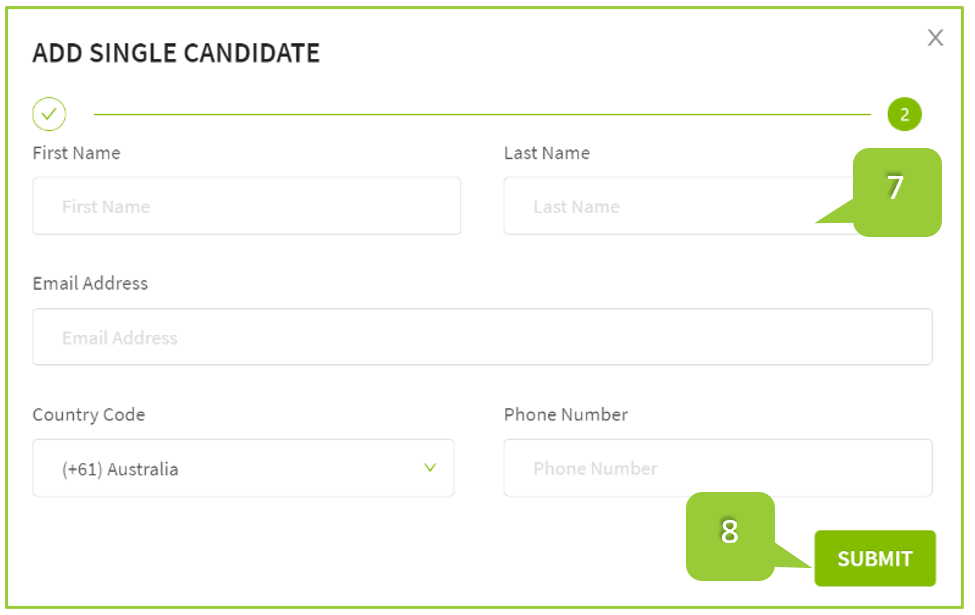
Fill in the candidate’s details
Click Submit.
The candidate will appear in the Candidate List in a Pending state ready to be invited when appropriate.
To manually add additional participants, click the + New Candidate button again and repeat steps 4 to 6.
INFO
Candidates are not automatically invited when added to the campaign. you are required to invite them manually. Learn more
Bulk Upload multiple candidates
Follow steps 1 to 4 in the in the Add candidates individually instructions (above)
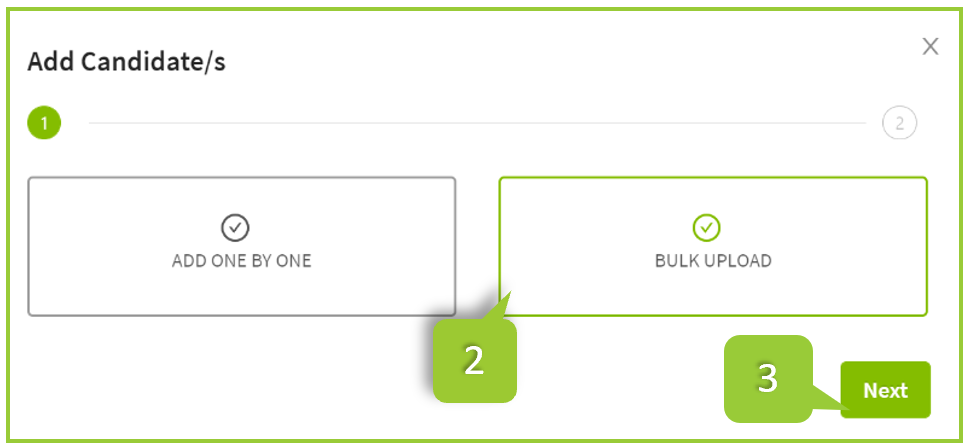
The Add Candidate/s page will appear. Select Bulk upload
Click Next
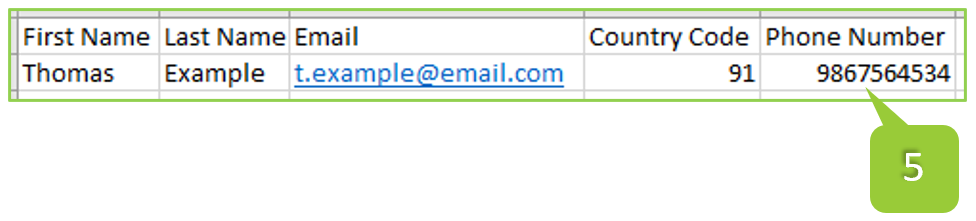
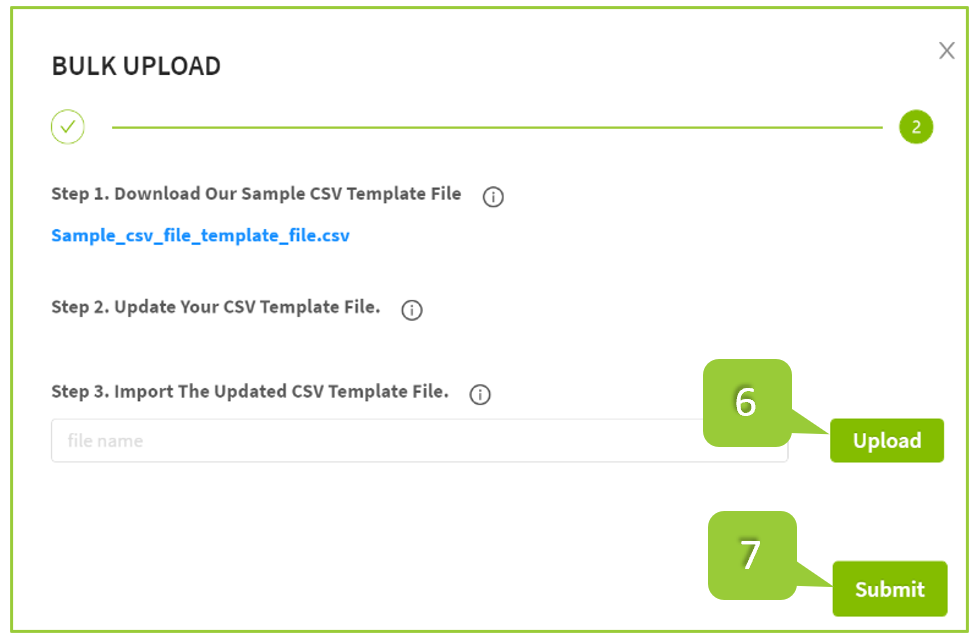
- On the Bulk Upload page, download the sample CSV template file from the link in the instruction box. The file has the column headings required for the file to be uploaded for bulk addition of participants
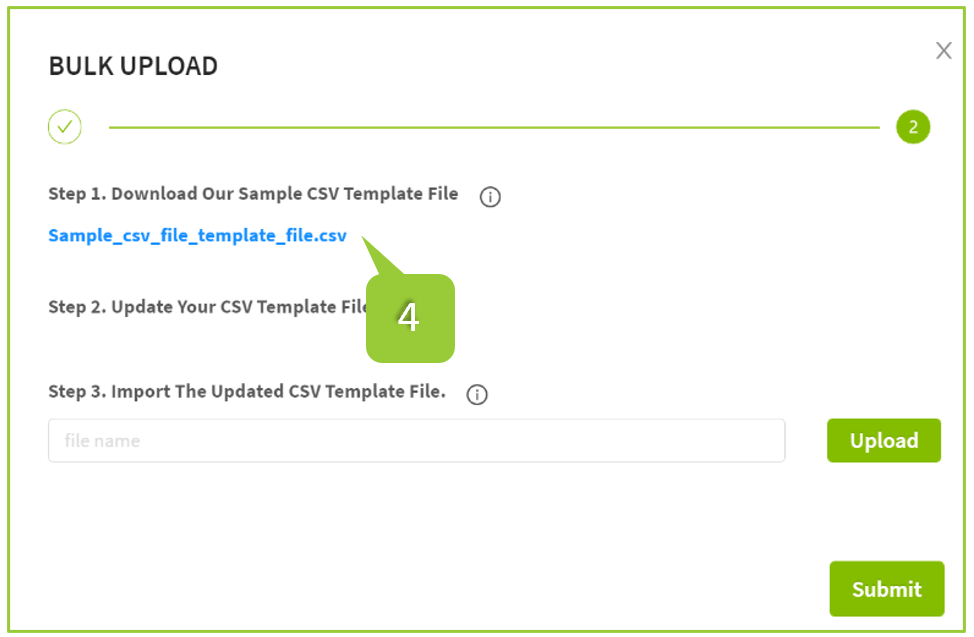
- Update the template file with the required candidate information
WARNING
The file must be a CSV (Comma Separated Values) file. To check, the file will end with .csv. Please ensure the candidate details match the column headings provided in the template.
Import the updated CSV template file by clicking the Upload button
Once the file has been uploaded, click Submit
The user will be redirected to Candidate List page.
A list of all the participants in the CSV file will be displayed under the Candidate List tab.
Invite candidates from campaigns
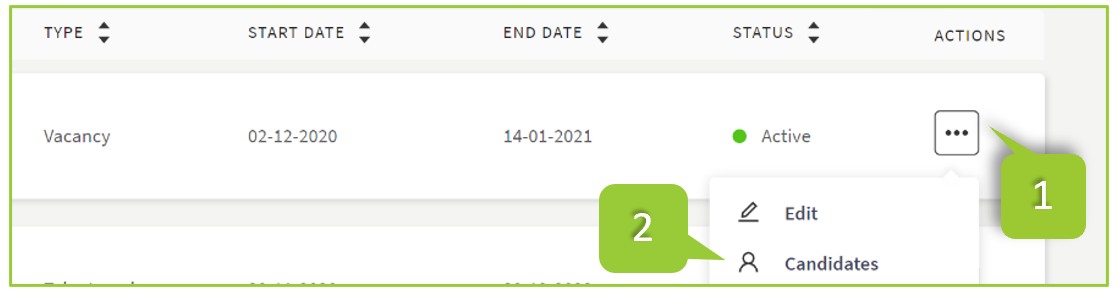
On the Campaigns page, click the three-dot button under the Actions column
Click Candidates
There are two options available when inviting candidates from the campaign:
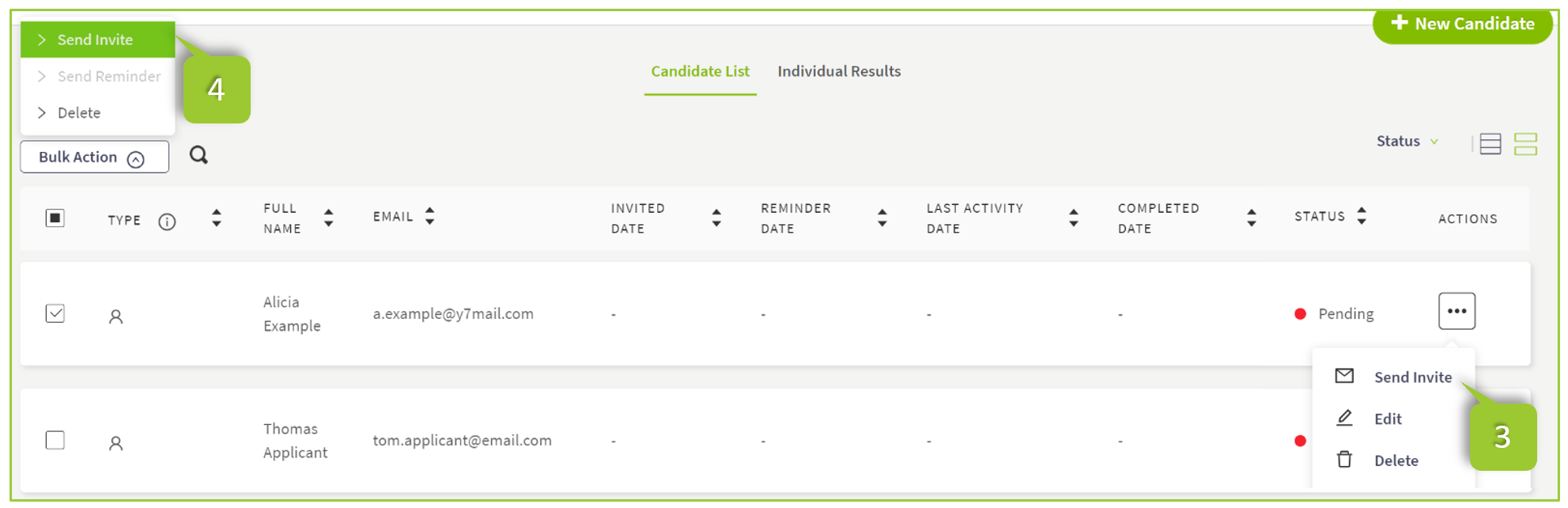
Invite single candidate: click the icon under the Actions column then click Send Invite
Invite bulk candidates: In the Candidate List tab, select the candidates from the list by clicking the tick boxes on the row Click Bulk Action on the top left side above the table of candidates then select Send Invite to send the selected candidates an invitation to the campaign.