On this page
Create a New Campaign
Create a Vacancy Campaign
To create a new Vacancy campaign:
- Click Campaigns on the main menu
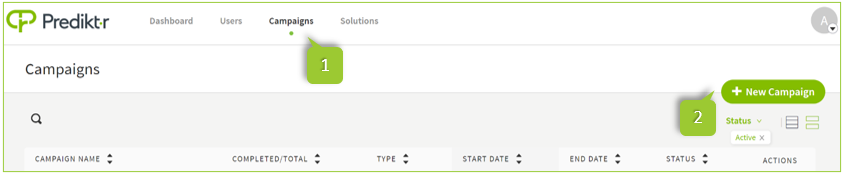
- In the top right corner of the Campaigns page, click + New Campaign
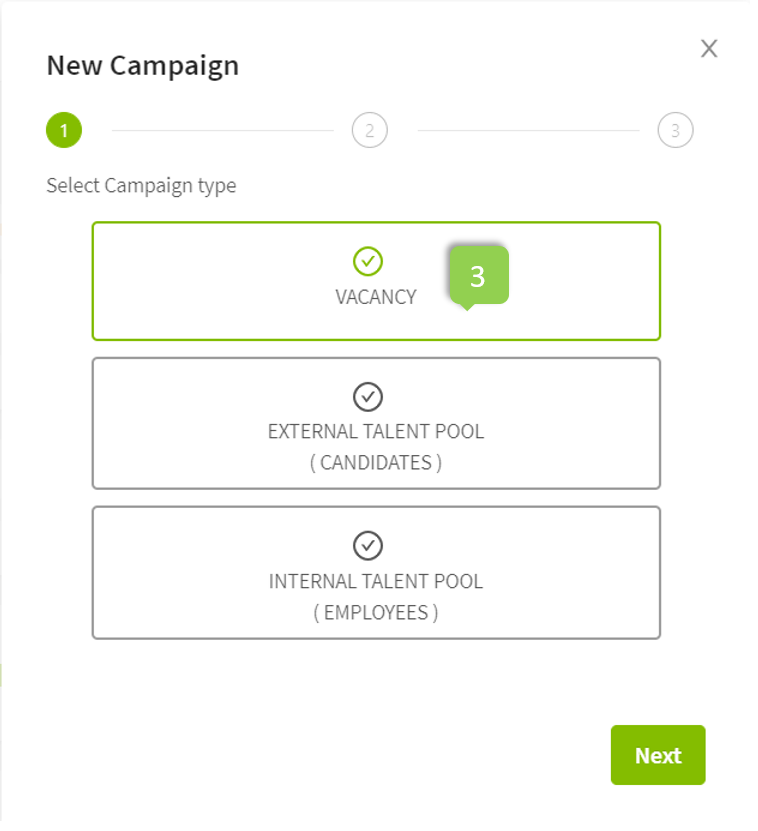
- Select the Vacancy campaign type then click Next
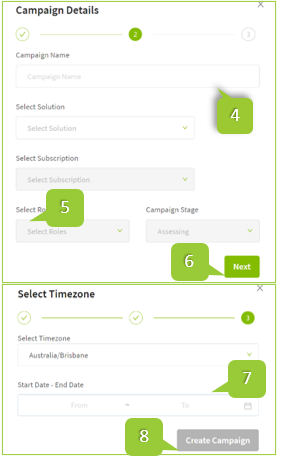
- The Campaign Details page will load. Enter the Campaign name then select the Solution from the drop-down menu.
- Select the subscription and number of roles
- Click Next
- Select the time zone, start date/time and end date/time
- Click Create Campaign
- The new campaign will appear at the top of the list of campaigns.
WARNING
- All demo solutions have a red dot and ‘Demo’ beside the name and should only be used for internal testing purposes only.
- A Vacancy campaign can only be set up for up to 45 days (6 weeks) in duration.
Create an External Talent Pool Campaign
To create a new External Talent Pool campaign:
Click Campaigns on the main menu
In the top right corner of the Campaigns page, click + New Campaign
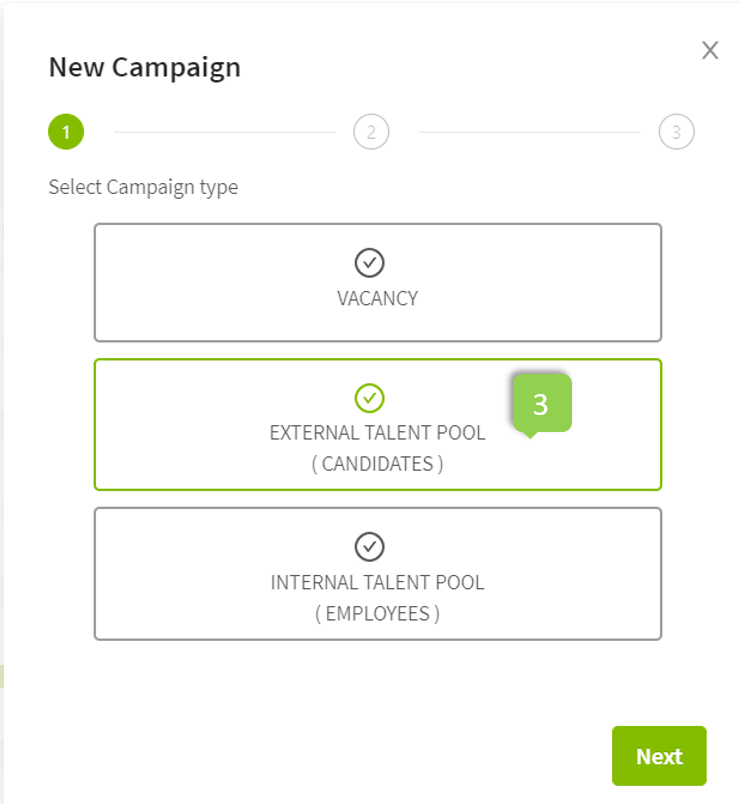
Select the External Talent Pool campaign type then click Next
The Campaign Details page will load. Enter the Campaign name then select the Solution from the drop-down menu
Select the subscription and credit
Click Next
Select the time zone, start date/time and end date/time
Click Create Campaign
The new campaign will appear at the top of the list of campaigns.
Create an Internal Talent Pool Campaign
To create a new Internal Talent Pool campaign:
- Click Campaigns on the main menu
2. In the top right corner of the Campaigns page, click + New Campaign 3. Select the Internal Talent Pool campaign type then click Next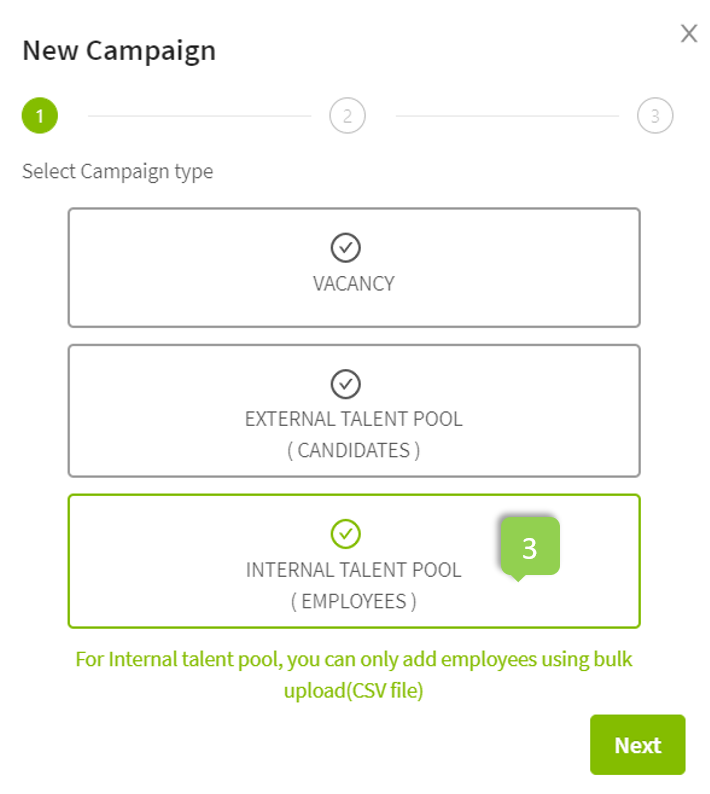 4. The Campaign Details page will load. Enter the Campaign name then select the Solution from the drop-down men 5. Select the subscription and credit 6. Click Next 7. Select the time zone, start date/time and end date/time 8. Click Create Campaign The new campaign will appear at the top of the list of campaigns.
WARNING
- Candidates can only be added via bulk upload for Internal Talent Pool.
- All demo solutions have a red dot and ‘Demo’ beside the name and should only be used for internal testing purposes only.