On this page
Profile and Branding
Under the Profile Details are the user, organisation, and subscription details. A User can update their own details and view the other tabs, whereas a Company Admin can also update the organisation details.
Update User Details
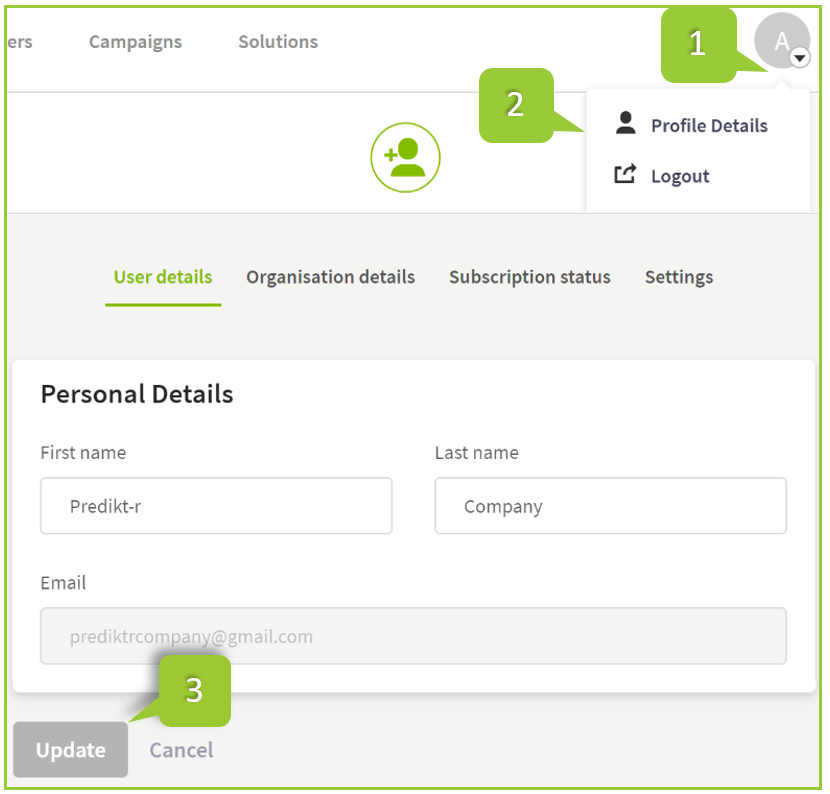
Click on the drop-down arrow next to the User’s icon in the top right corner of the main menu to expand the menu options
Click Profile Details to edit User details
Click the Update button to save the updated profile details.
WARNING
The primary email assigned to a User cannot be updated. Please contact Predikt-r Support by emailing support@predikt-r.com.au if changes are required.
Change password
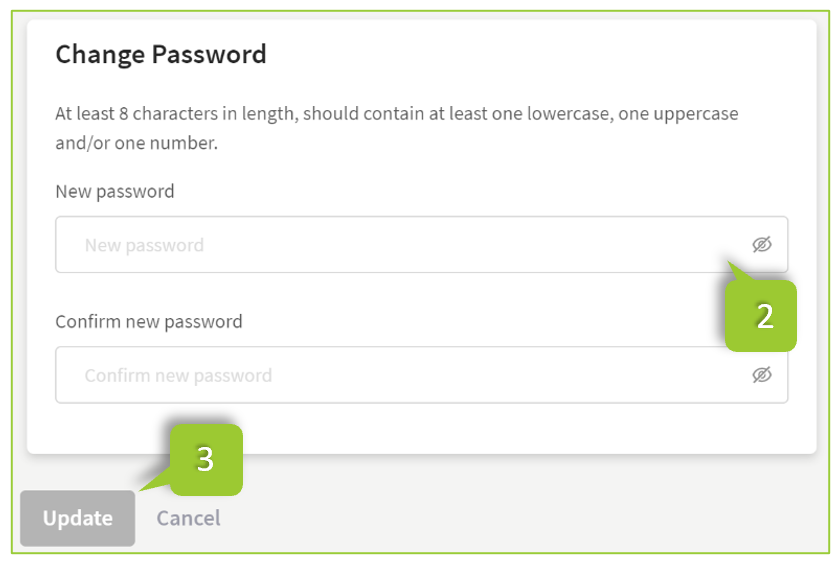
In the User details tab, scroll down to Change Password
Enter the new password and confirm new password to confirm the new password is accurate and repeatable
Click the Update button to update the password.
An auto-generated email should be received to confirm that the password has changed.
TIP
Company Admin users can also update the password of the Company Staff users in the Users page.
Update Organisational Details
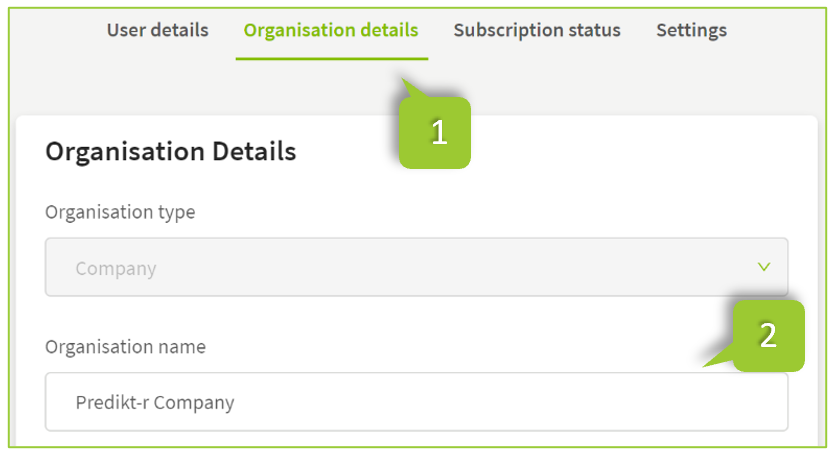
- Click the Organisation details tab
- A Company Admin will be able to scroll down and update all Organisation details by clicking in the required field then type the required updated information.
- Click the Update button to save the updated information or Cancel to revert to the previously saved information.
View Subscriptions
Under the Subscription status tab all subscriptions and their details are listed. To purchase additional subscriptions, please contact your Predikt-r Partner for more information.
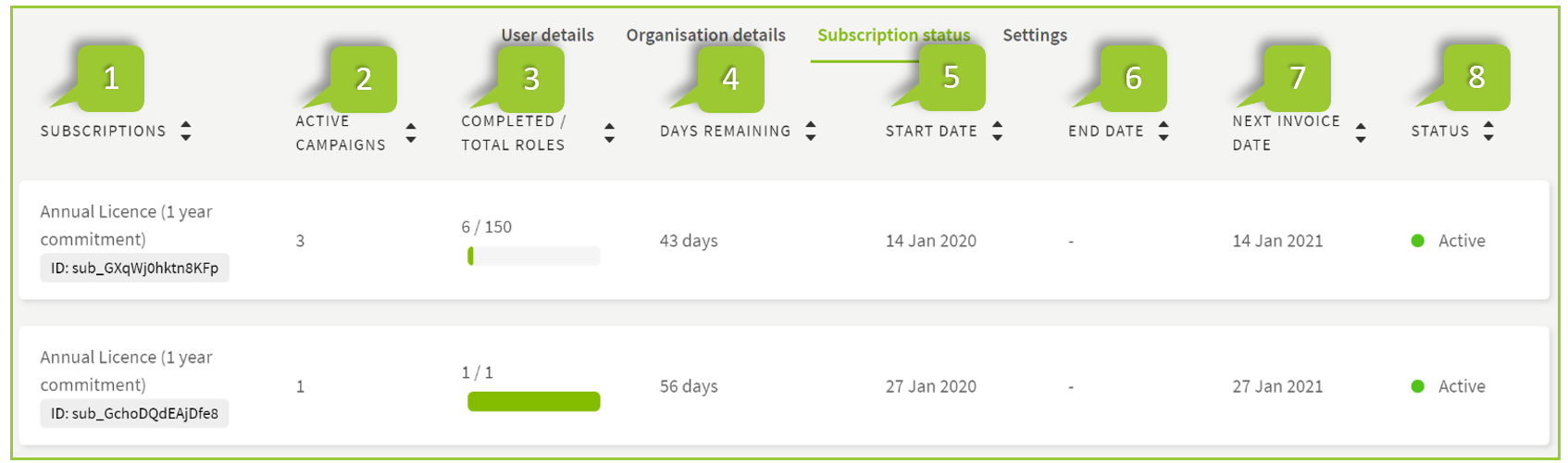
| # | HEADING | DESCRIPTION |
|---|---|---|
| 1 | Subscriptions | Name of subscription type purchased |
| 2 | Active campaigns | Number of active campaigns allocated a role from the subscription |
| 3 | Completed/Total roles | Number of roles allocated from subscription |
| 4 | Days remaining | Countdown to expiry of subscription. Once expired, the subscription and associated roles will no longer be available to create new campaigns |
| 5 | Start date | Date subscription purchased |
| 6 | End date | Date subscription will expire |
| 7 | Next invoice date | Date the next subscription invoice will be issued or direct debited |
| 8 | Status | Indicates if the subscription is active, deactivated or expired |
Brand Settings (Admin users only)
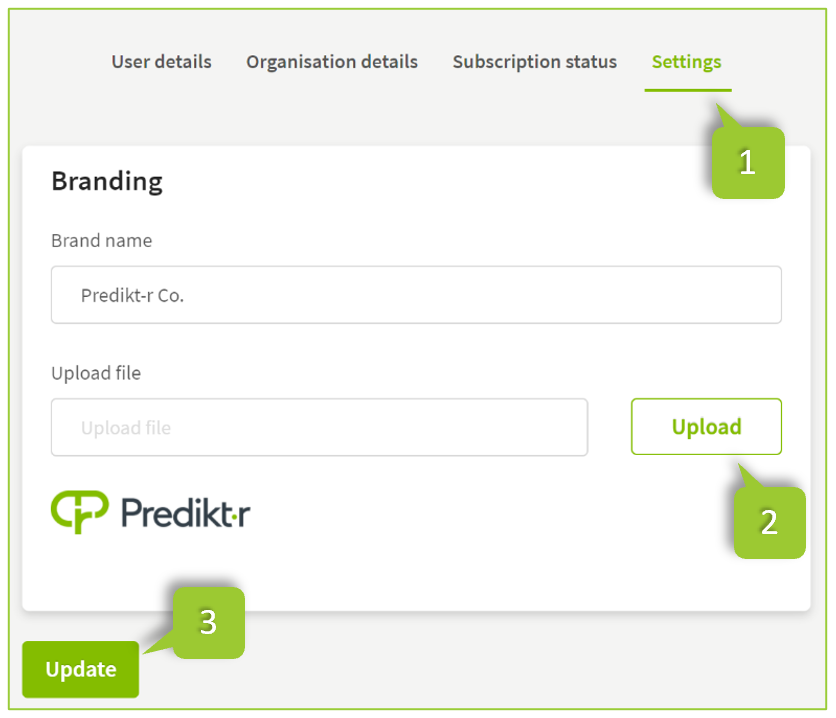
Company Admins can update and edit the branding details for their Company.
- Click Settings
- In the Settings tab, an Admin user can update the Brand Name or upload a logo file
- Once the required changes are made, click the Update button to update the branding changes.