On this page
Manage Users
User Permissions
Predikt-r supports role based permissions for users. A user with Admin Level access will typically be someone managing recruitment (e.g. HR Manager), whereas a user with Staff access will generally support recruitment activities for an organisation. These users need to be invited by users with Admin access.
A summary of the difference in permissions is below:
| Permission | Staff User | Admin User |
|---|---|---|
| Add, edit and delete users in Predikt-r Platform | ✔ | |
| Edit the company’s branding information | ✔ | |
| Purchase additional or upgrade existing subscriptions | ✔ | |
| Create Campaigns | ✔ | ✔ |
| Add / invite candidates to the campaign | ✔ | ✔ |
| Send reminders to Candidates | ✔ | ✔ |
| Monitor campaign status/results | ✔ | ✔ |
| Export Campaign results | ✔ | ✔ |
Add New Users
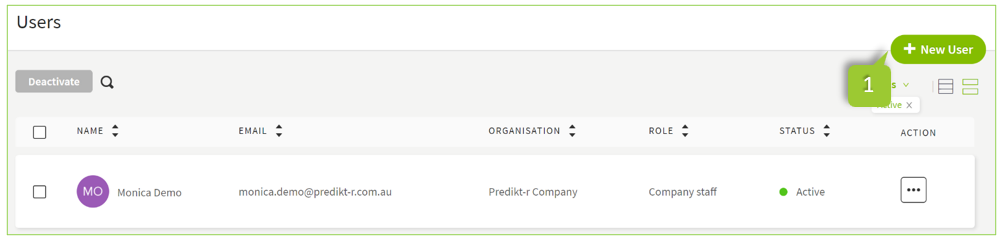
Users can be added or edited in the User page in the Platform. To access the User list, click the Users option in the main menu.
To add a new User:
- In the User list, click + New User button in the top right-hand corner of the screen
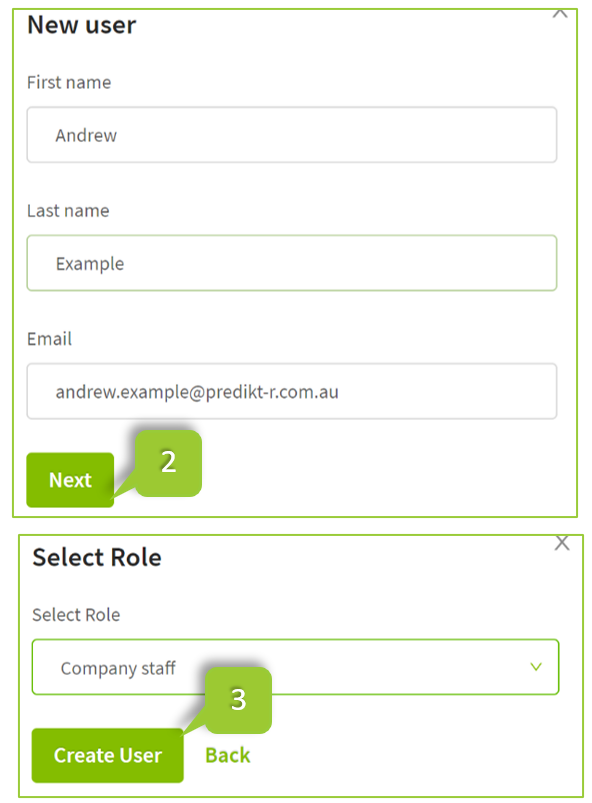
Enter the user’s first and last name and email then click the Next button
Select the role from the Select Role dropdown, then click Create User An auto-generated email invite will be sent to the User to activate their account. The User will appear in the User List (please note the ‘Active’ status filter may need to be removed if the user is not visible).
Edit Users
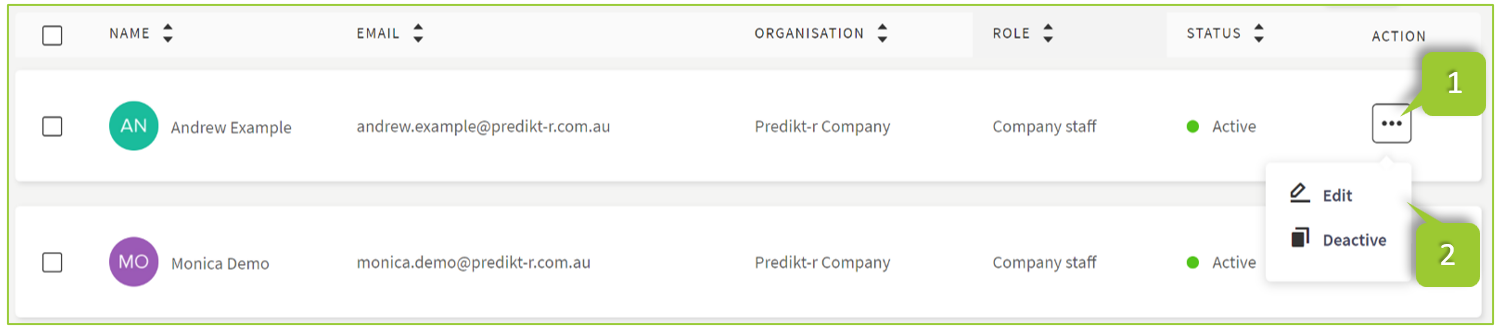
- On the Users page click the menu icon under the Action column
- Click Edit
- The User details page will load. Please refer to the User Profile section of this guide for further information.
Note
The primary email assigned to a user cannot be edited. Please contact Predikt-r Suppport